
How Appointment-Based Businesses Can Reduce No-Shows With WhatsApp
Learn how appointment-based businesses can use WhatsApp confirmations, reminders, rescheduling, waiting lists, and follow-ups to reduce missed appointments.
On this page28 sections
- How Appointment-Based Businesses Can Reduce No-Shows With WhatsApp
- Why Customers Miss Appointments
- Begin With Clear Permission
- 1. Send an Immediate Booking Confirmation
- 2. Ask Customers to Confirm
- 3. Choose Reminder Timing Carefully
- 4. Make Rescheduling Easy
- 5. Make Cancellation Simple
- 6. Include the Exact Location
- 7. Share Preparation Instructions
- 8. Confirm Important Changes
- 9. Use Waiting Lists to Fill Cancelled Slots
- 10. Use Deposits Carefully
- 11. Explain Cancellation and No-Show Policies Clearly
- 12. Use Different Workflows for Different Appointment Types
- 13. Personalise With Relevant Context
- 14. Prepare for Customer Replies
- 15. Escalate Complex Requests to a Person
- 16. Avoid Over-Messaging
- 17. Use the Customer’s Local Time
- 18. Follow Up After a Missed Appointment
- 19. Follow Up After Completed Appointments
- Build a Complete Appointment Workflow
- Test the Workflow Before Launch
- Measure No-Show Performance
- Common Mistakes to Avoid
- How Voixt.ai Helps Reduce Appointment No-Shows
- Final Thoughts
How Appointment-Based Businesses Can Reduce No-Shows With WhatsApp
A missed appointment creates more than an empty time slot.
The business may lose revenue, employees may remain unavailable to other customers, waiting lists may go unused, and schedules can become difficult to manage.
Customers do not always miss appointments intentionally. They may forget, record the wrong time, struggle to find the location, need to reschedule, or feel that cancelling requires too much effort.
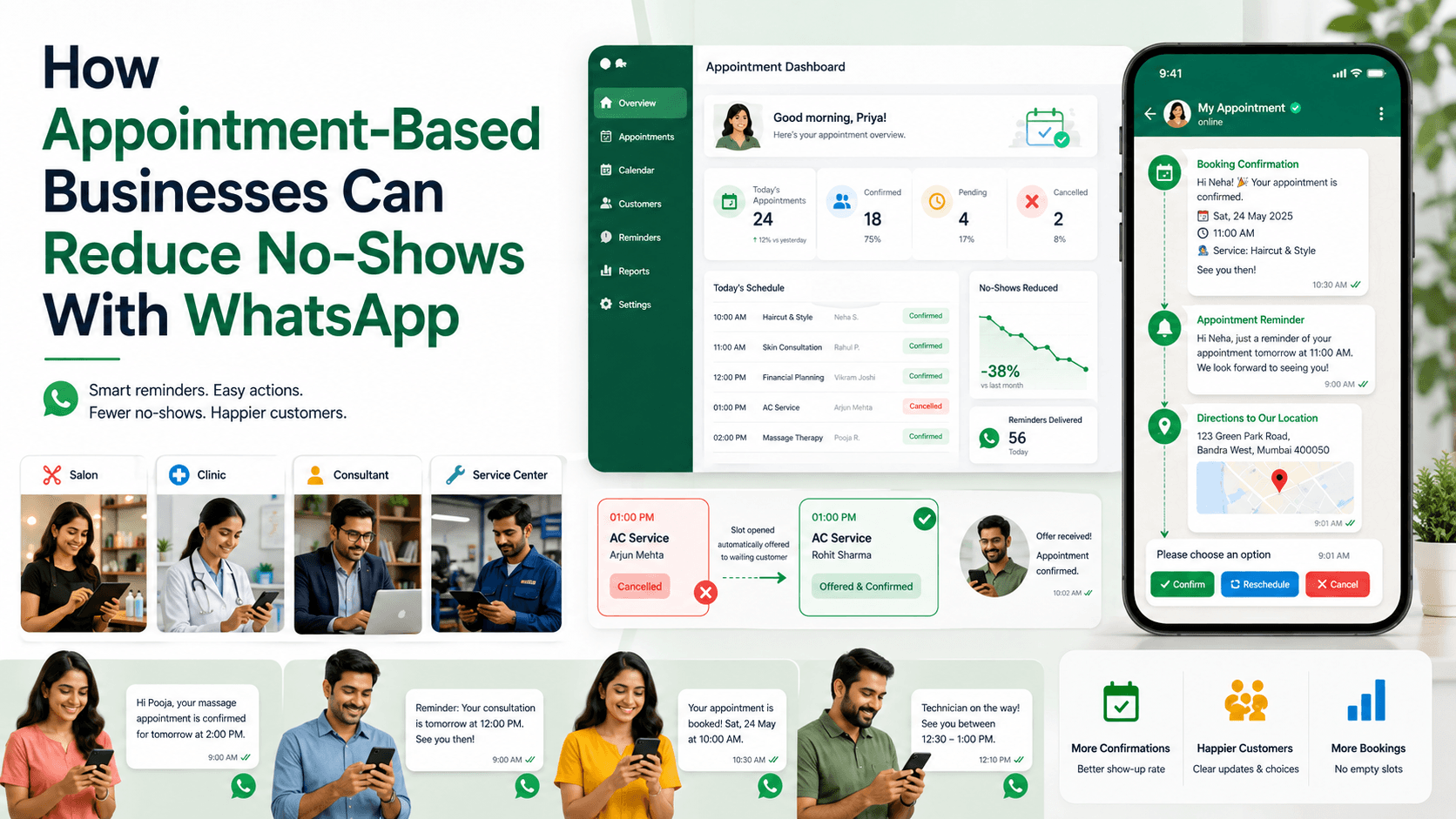
WhatsApp can reduce these problems by giving customers timely reminders and simple ways to confirm, reschedule, cancel, ask questions, and receive preparation instructions.
The objective is not to send more messages. It is to make every appointment easier to remember and manage.
Why Customers Miss Appointments
Common reasons include:
- The customer forgot
- The booking was made several weeks earlier
- The date or time was recorded incorrectly
- The customer did not receive confirmation
- The location was unclear
- Preparation requirements were missed
- Travel time was underestimated
- The customer needed to reschedule
- Cancelling required a phone call during business hours
- The appointment no longer felt relevant
- The business changed the schedule without clear communication
A reminder alone cannot solve every cause. Businesses need a complete appointment communication process.
Begin With Clear Permission
Customers should understand that their phone number will be used for appointment communication.
A booking form might say:
Receive booking confirmations, reminders, schedule changes, and service-related updates from BrightCare on WhatsApp. Reply STOP at any time to update your communication preference.
WhatsApp requires businesses to receive appropriate opt-in permission before initiating messages and to respect requests to stop communication. WhatsApp Business Messaging Policy
Businesses should also comply with applicable privacy and marketing requirements.
Keep appointment messages separate from general promotions. Agreeing to receive booking reminders should not automatically subscribe someone to unrelated offers.
1. Send an Immediate Booking Confirmation
Send a confirmation as soon as the appointment is successfully created.
The message should include:
- Customer name
- Service or appointment type
- Date
- Time
- Time zone when relevant
- Location or meeting method
- Employee or specialist name when appropriate
- Duration
- Price or deposit information
- Preparation instructions
- Rescheduling and cancellation options
For example:
Hi Meera, your consultation is confirmed.
Date: 24 August Time: 3:30 p.m. Location: BrightCare, Indiranagar Duration: Approximately 45 minutes
Reply CONFIRM, RESCHEDULE, or CANCEL. Directions: [Approved Map Link]
This gives the customer one reliable record of the appointment.
2. Ask Customers to Confirm
A booking confirmation tells customers that the appointment exists. A confirmation request asks whether they still intend to attend.
For example:
Reminder: Your appointment is tomorrow at 3:30 p.m. Reply YES to confirm, CHANGE to reschedule, or CANCEL if you cannot attend.
Use clear response options.
Avoid asking customers to type long sentences or contact another department merely to confirm.
Update the appointment status automatically when the customer replies.
Possible statuses include:
- Booked
- Confirmation requested
- Confirmed
- Rescheduling requested
- Cancelled
- Completed
- No-show
3. Choose Reminder Timing Carefully
There is no single reminder schedule for every business.
Timing depends on:
- How far in advance customers book
- Appointment value
- Service duration
- Travel requirements
- Preparation requirements
- Cancellation window
- Customer preference
- Whether a deposit was paid
A common sequence might include:
Immediately after booking
Send complete confirmation details.
Two or three days before
Ask the customer to confirm, reschedule, or cancel.
The day before
Send a concise reminder with the time, location, and preparation requirements.
A few hours before
Use only when helpful for the service and expected by the customer.
Do not send several reminders within a short period merely because the customer has not replied.
4. Make Rescheduling Easy
Customers may miss appointments because rescheduling is inconvenient.
Offer a direct option:
Reply RESCHEDULE to view the next available times.
A workflow can:
- Identify the existing appointment
- Display suitable alternatives
- Let the customer choose a new time
- Show the updated details
- Request confirmation
- Release the previous slot
- Send a revised confirmation
If the customer needs an unusual time or special arrangement, transfer the conversation to an employee.
5. Make Cancellation Simple
A cancelled appointment is usually better than an unexplained no-show.
When customers can cancel easily, the business has time to offer the slot to someone else.
For example:
If you cannot attend, reply CANCEL. You can book another time whenever you are ready.
After cancellation, confirm the outcome:
Your appointment on 24 August at 3:30 p.m. has been cancelled. No further action is required.
If a cancellation charge applies, explain it before the customer confirms the booking—not only after they cancel.
6. Include the Exact Location
Location confusion can cause late arrivals and missed appointments.
Include:
- Branch name
- Full address
- Map link
- Floor or suite number
- Nearby landmark
- Parking information when relevant
- Entry instructions
- Contact option for assistance
For example:
Location: BrightCare Indiranagar, second floor, 18 CMH Road. The entrance is next to Metro Pharmacy. Directions: [Approved Map Link]
For virtual appointments, include the meeting link and basic joining instructions.
7. Share Preparation Instructions
Some appointments require the customer to prepare in advance.
Examples include:
- Bring identification
- Complete a form
- Arrive early
- Bring previous documents
- Avoid applying a product
- Prepare measurements
- Upload reference materials
- Ensure equipment is accessible
Send only the instructions relevant to the booked service.
For example:
Please arrive 10 minutes early and bring your booking confirmation and photo identification.
If preparation instructions have important health, legal, or safety implications, ensure that an authorised professional has approved the wording.
8. Confirm Important Changes
If the business changes an appointment, do not treat the update as a normal reminder.
Clearly state:
- What changed
- Why, when appropriate
- New date or time
- Available alternatives
- Whether the customer must confirm
- How to contact the business
For example:
We need to change your appointment scheduled for 24 August at 3:30 p.m. The next available options are 25 August at 11:00 a.m. or 26 August at 4:00 p.m. Please reply 1, 2, or HUMAN for assistance.
Do not silently update the calendar and assume the customer will notice.
9. Use Waiting Lists to Fill Cancelled Slots
When a customer cancels, automation can notify suitable people on a waiting list.
Waiting-list records may include:
- Requested service
- Preferred branch
- Suitable days
- Preferred time range
- Required employee
- Customer priority
- Expiry date
For example:
An appointment has become available tomorrow at 4:00 p.m. at our Koramangala branch. Reply BOOK within 30 minutes if you would like this slot. No action is needed if it is unsuitable.
Do not promise the same slot to several customers without a reliable reservation process.
The first accepted and confirmed booking should update availability immediately.
10. Use Deposits Carefully
For some services, a deposit can increase commitment and reduce financial loss from missed appointments.
Before requesting payment, explain:
- Deposit amount
- What it reserves
- Whether it is refundable
- Cancellation deadline
- Rescheduling conditions
- How it will be applied to the final amount
For example:
A ₹500 deposit is required to reserve this appointment. It will be deducted from your final bill. You can reschedule once without losing the deposit if you notify us at least 24 hours before the appointment.
Use an approved payment method and verify the payment through the authorised system.
Never ask customers to share card PINs, passwords, or one-time passwords through chat.
11. Explain Cancellation and No-Show Policies Clearly
A policy should help customers make informed decisions—not surprise them after a problem occurs.
State:
- Cancellation deadline
- Rescheduling conditions
- Late-arrival policy
- Deposit treatment
- No-show charge when applicable
- How to request an exception
Keep the summary readable and provide a link to complete terms if necessary.
For example:
You can reschedule or cancel without charge until 3:30 p.m. on 23 August. Later changes may affect your deposit. Reply POLICY for the complete terms.
Apply policies consistently while allowing authorised employees to review exceptional situations.
12. Use Different Workflows for Different Appointment Types
A short store consultation should not receive the same reminder sequence as a high-value service requiring preparation.
Create workflows based on:
- Service type
- Appointment duration
- Booking lead time
- Customer location
- Preparation requirements
- Deposit status
- Virtual or in-person format
- New or returning customer
For example, a virtual consultation may need a meeting-link reminder, while an in-person service may need directions and arrival instructions.
13. Personalise With Relevant Context
Useful personalisation can reference:
- Confirmed service
- Appointment date
- Branch
- Assigned professional
- Preparation requirement
- Requested accessibility arrangement
- Customer-selected reminder time
Avoid adding unrelated purchase history or sensitive information to a reminder.
Use the minimum context required to make the appointment easy to manage.
14. Prepare for Customer Replies
Reminder messages generate responses.
Customers may ask:
- Can I come later?
- Can I change the service?
- Where should I park?
- Can I bring someone?
- Is the deposit refundable?
- Which documents do I need?
- Can I use a different branch?
Before sending reminders, confirm:
- Which employees will handle replies
- How conversations will be assigned
- Which schedule information is current
- Who can approve exceptions
- How cancellations update availability
- How waiting lists are managed
Do not send a large batch of reminders when nobody is available to handle changes.
15. Escalate Complex Requests to a Person
Automation can manage standard confirmations, rescheduling, and cancellations.
Human assistance is appropriate when:
- The customer requests a special time
- The booking involves sensitive circumstances
- A payment is disputed
- The customer challenges a cancellation charge
- Accessibility arrangements are needed
- The customer is upset
- Records conflict
- An exception requires approval
The employee should receive the appointment details and complete conversation history.
16. Avoid Over-Messaging
Too many reminders can feel intrusive.
Avoid:
- Repeating the same message several times
- Sending reminders after cancellation
- Continuing after the appointment is completed
- Sending promotional messages inside urgent appointment updates
- Contacting the customer at unreasonable hours
- Sending reminders for an outdated booking
Stop the workflow immediately when the appointment status changes.
17. Use the Customer’s Local Time
Businesses serving several regions should account for time zones.
Every appointment message should clearly identify the relevant date and time.
For virtual appointments across regions, include the time zone:
Your consultation is scheduled for 24 August at 3:30 p.m. IST.
Test daylight-saving changes where applicable and avoid ambiguous date formats.
Use “24 August” instead of “08/24” or “24/08” when customers may interpret formats differently.
18. Follow Up After a Missed Appointment
A no-show message should remain respectful.
Avoid:
You failed to attend your appointment.
Use:
Hi Meera, we noticed that you were unable to attend your appointment today at 3:30 p.m. We hope everything is okay. Reply REBOOK if you would like to choose another time or HELP if you need assistance.
If a no-show fee or deposit condition applies, communicate it calmly and accurately.
A human employee should handle disputes or sensitive circumstances.
19. Follow Up After Completed Appointments
After completion, the business may send:
- Service summary
- Receipt
- Relevant care or usage instructions
- Next appointment recommendation
- Feedback request
- Future reminder preference
For example:
Thank you for visiting BrightCare today. Your next recommended service is in three months. Reply REMIND if you would like a WhatsApp reminder closer to the date.
Do not schedule future reminders without appropriate customer agreement.
Build a Complete Appointment Workflow
A practical workflow might include:
- Customer selects a service
- Available times are displayed
- Customer chooses a time
- Required details are collected
- Price, deposit, and policies are shown
- Customer confirms
- Booking is created
- Confirmation is sent
- Reminder is scheduled
- Customer confirms, reschedules, or cancels
- Calendar availability updates
- Cancelled slot is offered to the waiting list
- Appointment is marked completed or no-show
- Appropriate follow-up is sent
Every stage should update one central booking record.
Test the Workflow Before Launch
Test:
- Correct date and time
- Time zones
- Duplicate reminders
- Cancelled appointments
- Rescheduled appointments
- Missing customer names
- Broken map links
- Incorrect branch information
- Deposit status
- Waiting-list conflicts
- Opt-outs
- Employee handovers
- Calendar synchronisation
Run tests for bookings made far in advance, at short notice, and outside business hours.
Measure No-Show Performance
Track:
- Appointments booked
- Confirmation rate
- Rescheduling rate
- Cancellation rate
- No-show rate
- Reminder response rate
- Average cancellation notice
- Waiting-list conversions
- Slots refilled after cancellation
- Revenue preserved
- Deposit disputes
- Customer satisfaction
Compare results by:
- Service type
- Branch
- Booking source
- Reminder timing
- New or returning customer
- Appointment lead time
This helps the business improve the workflow instead of simply sending more reminders.
Common Mistakes to Avoid
Sending Only One Reminder
Use a sequence appropriate to the appointment type and booking lead time.
Making Cancellation Difficult
Provide a simple cancellation option so the slot can be reused.
Forgetting Rescheduled Appointments
Cancel the previous reminder sequence and create a new one.
Omitting Location or Preparation Details
Give customers everything required to arrive successfully.
Hiding Deposit or Cancellation Terms
Explain important conditions before the booking is confirmed.
Sending Reminders After Cancellation
Connect message workflows to the current appointment status.
Treating Every Appointment Identically
Adapt timing and content to the service, location, and customer needs.
Automating Exceptions
Transfer disputes, special requirements, and sensitive situations to an employee.
How Voixt.ai Helps Reduce Appointment No-Shows
Voixt.ai helps appointment-based businesses organise bookings, automate reminders, and manage customer replies through WhatsApp.
Teams can use:
- No-code automation workflows for booking confirmations, reminders, rescheduling, cancellations, and follow-ups
- Shared multi-agent WhatsApp inboxes so employees can handle appointment conversations together
- Conversation assignments so every rescheduling request or exception has an owner
- Automatic contact capture to maintain organised customer records
- Contact tags and filters for appointment type, branch, status, and reminder preference
- Visual CRM pipelines to track bookings from enquiry to completion
- Follow-up reminders for unresolved schedule changes and promised callbacks
- AI-powered responses to help answer common appointment questions
- AI-to-human handovers when customers need special assistance
- Private internal notes for preparation requirements and relevant booking context
- Campaign management for permission-based service updates and appointment communication
This allows businesses to reduce repetitive scheduling work while making it easier for customers to attend, reschedule, or cancel responsibly.
Final Thoughts
Reducing no-shows requires more than sending a reminder the night before.
Businesses should confirm every booking, communicate the exact time and location, provide relevant preparation instructions, make rescheduling and cancellation simple, and offer cancelled slots to waiting customers.
Automation can manage timing, status updates, and routine changes. Employees should remain available for exceptions, disputes, and special requirements.
Voixt.ai helps appointment-based businesses connect these steps in one organised WhatsApp workflow so fewer appointments are forgotten and more available time is used effectively.